


- Home |
- Course Override Instructions
Course Override Instructions
It is always worth the effort to ask for an override for a course you need. Below you'll find how to request one, common error messages explained, and info on the Banner 9 waitlist.
How to Request a Course Override
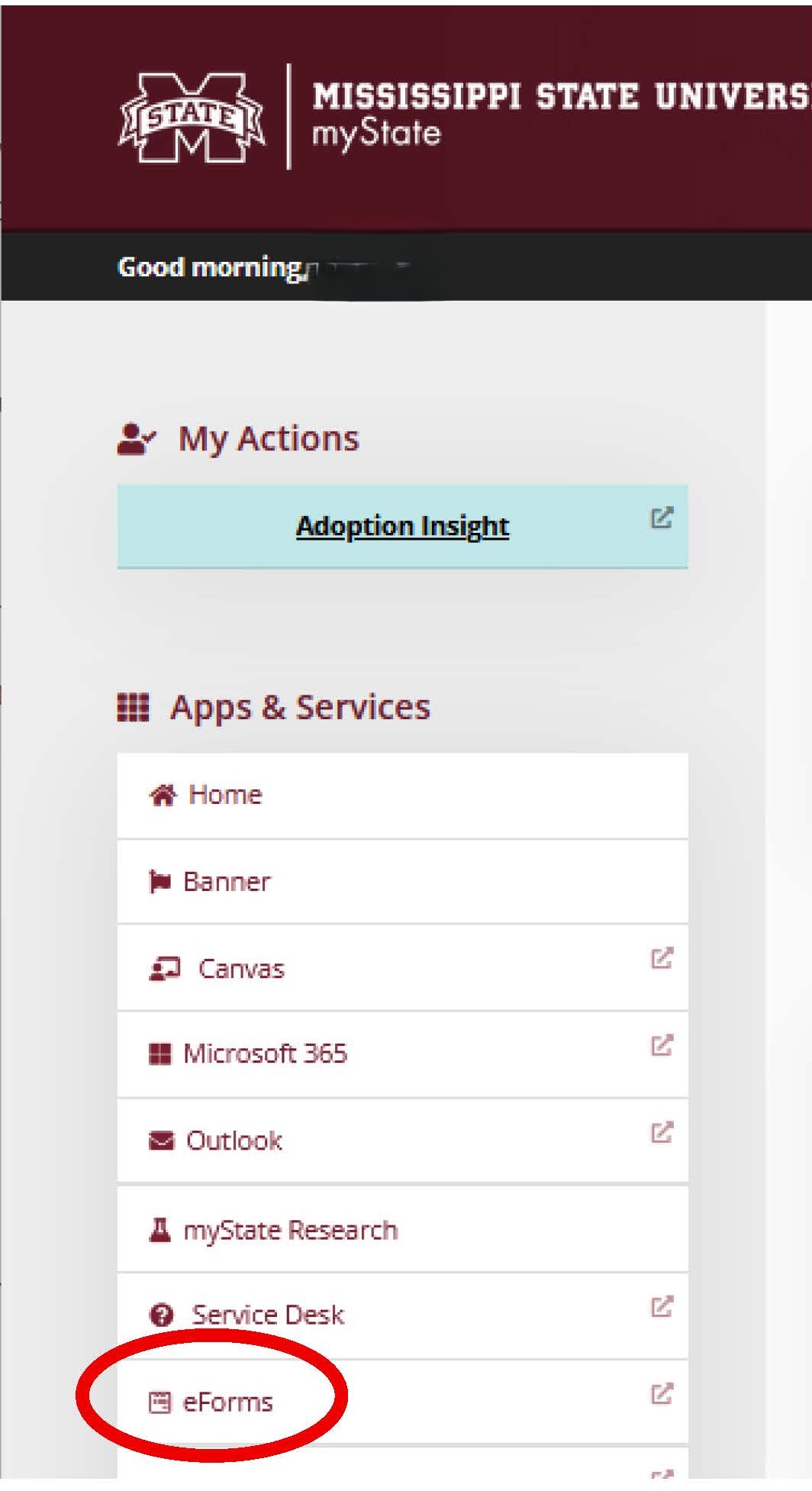
Get a registration error? You can request a course override during registration through a standardized eForm in myState.
How it works
- Check if it's override-eligible (prerequisite, major, class capacity, campus, etc).
If the course has a waitlist option for a capacity concern, add to the waitlist instead (see below). - In myState, select eForms on the left-hand side, then choose the Override Request option.
- Enter the course, section, override type needed, and your reason. Example: ECE 3714-01, Course code = 3714, Section = 01.
Requesting a Campus 5 course? You'll need to acknowledge additional fees apply. - Submit.
Heads up
This is NOT an automatic process. It's routed to the department for review, and you'll be notified by MSU email if approved or denied. If approved, register right away, unused overrides may be removed if not used in a timely manner.
Not Sure What Your Error Message Means?
Click each error message below to see what it means and what to do.
The section is full. Rework your schedule if possible (try different times), or add yourself to the Banner 9 waitlist. No waitlist option? Request a capacity override from the department offering the course.
You need both the lecture section and the lab section to add the class to your schedule.
You may have taken the pre-req course at another institution, and it's not showing on your MSU transcript, or it was a substituted course. Request a prerequisite override from the department offering the course.
This section is restricted to a major you're not classified as. Check for another section that fits your schedule. If none exist, request a major restriction override from the department offering the course.
This section is restricted to a campus you're not classified as. Check for another section first. If not, you can request a campus restriction override. Note: mixing campuses is not advised for financial reasons, you will likely see a large increase in tuition.
You've already taken this course. Request a repeat override from the department offering the course.
Banner 9 Waitlist
Instead of capacity override requests, you may have courses that use the Banner waitlist. The Banner waitlist is used for many classes on campus.
Watch the video below to learn the additional steps to adding yourself to the waitlist.
- If a seat becomes available, then the first student on the waitlist will receive an email from MSU's Registrar's Office stating you can add the course within 24 hours. This time limit will be shortened as we approach the first week of class.
- This process is handled automatically by Banner 9 registration. You will not need to contact the instructor, department, or college office about a waitlist.
- A student may be enrolled in one section and on the waitlist for one other section of the same course. After receiving a notification to add the waitlisted section, the student must first drop the original section before adding the new one.